Скриншоты
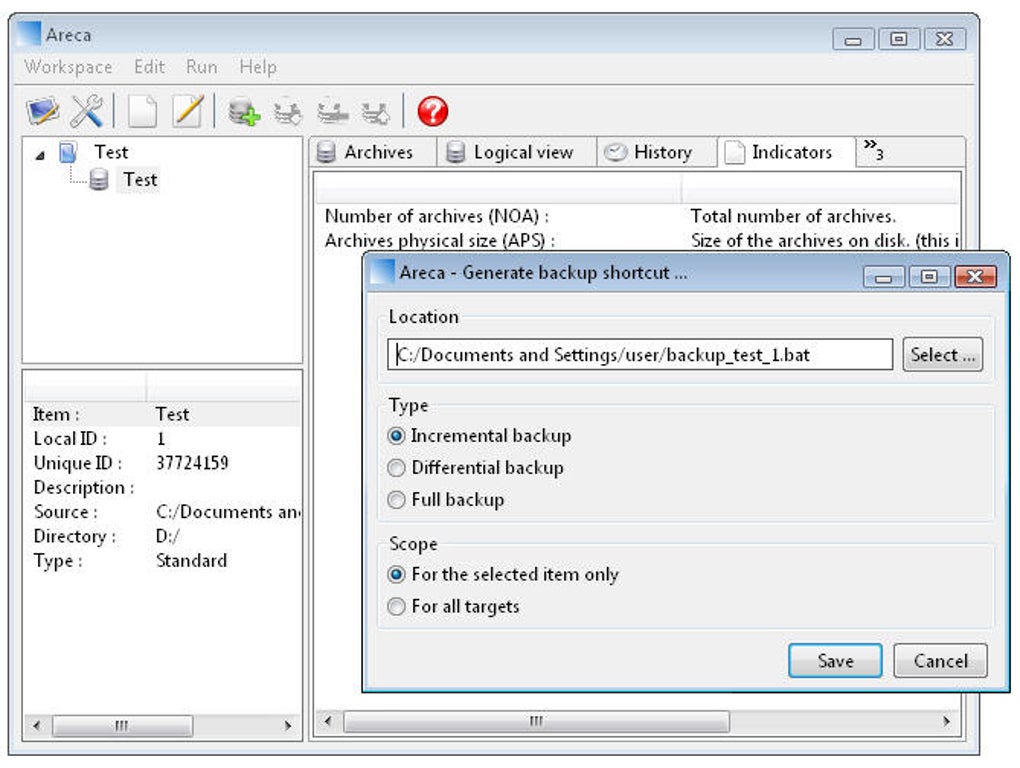
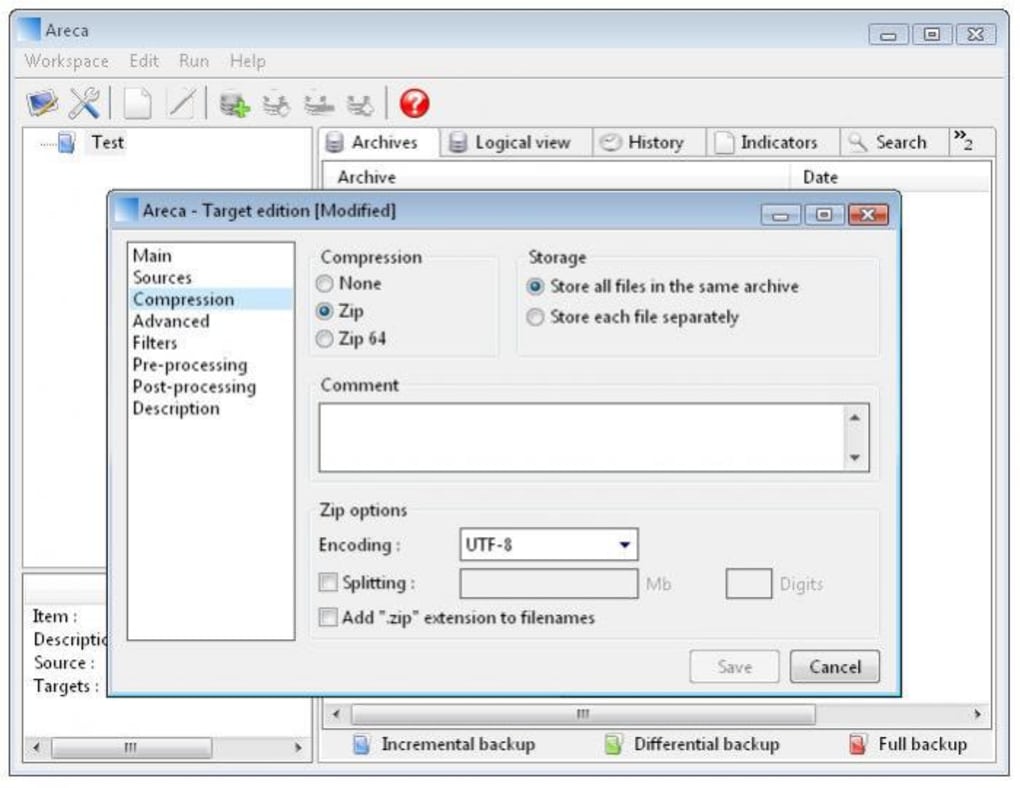
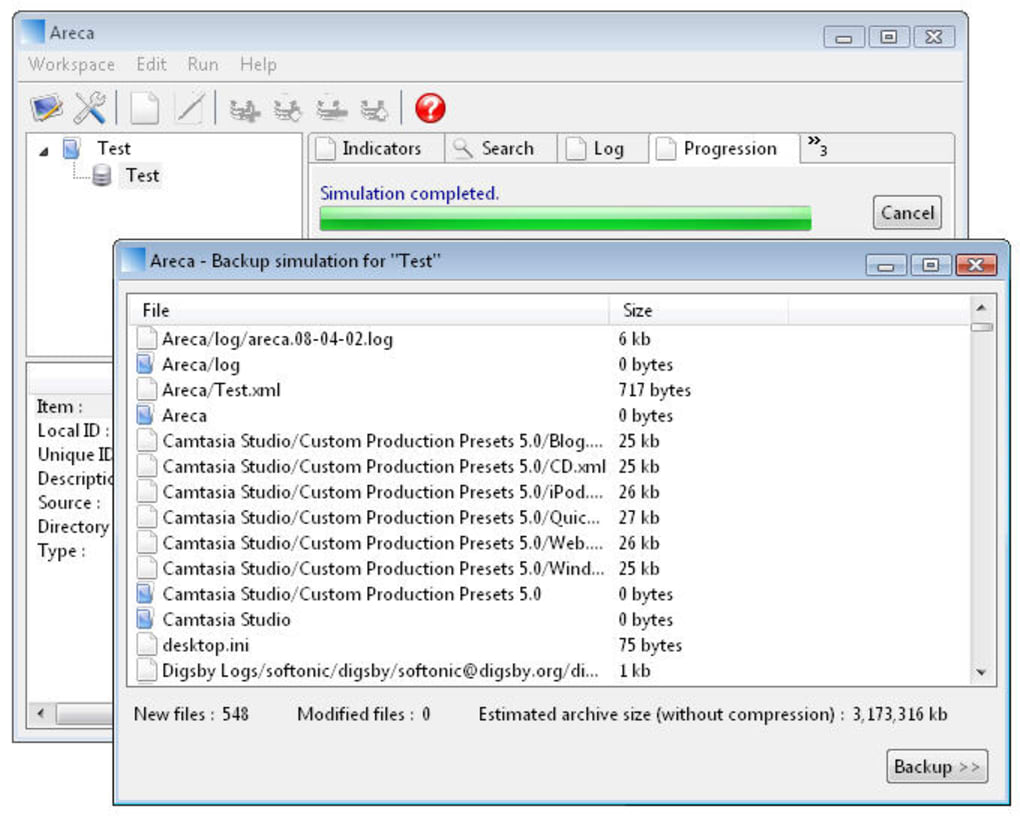
Сведения о приложении
- Версия
- 7.0.6 | 6.0
- Размер
- 4.91 MB
- Обновлено
- November 12, 2012
- Требуется
- Windows XP
- Язык
- English | German | Spanish | French | Du...
- Лицензия
- Free
- Разработчик
- Areca
- Категория
- Windows OS
SoftPas на:
Этот продукт также доступен на следующих языках:
О Areca Backup
Download Areca Backup – Secure, Free, Open‑Source Backup Tool for Windows, macOS & Linux
Areca Backup – это лёгкая, открытая утилита резервного копирования, ориентированная на простоту без потери мощности. Предназначена для пользователей, которым нужна надёжная защита документов, фотографий и файлов проектов; программа предлагает инкрементные резервные копии, сжатие и поддержку FTP — всё без оплаты. Хотя интерфейс может сначала показаться непривычным — используются термины вроде «workspace» и «target» — после освоения Areca предоставляет гибкое решение резервного копирования, работающее на основных операционных системах. В этом обзоре мы рассмотрим основные функции, пройдём процесс установки и ежедневного использования, оценим совместимость и взвесим плюсы и минусы, чтобы вы могли решить, подходит ли Areca Backup для вашей стратегии защиты данных.
Core Features & Functional Benefits
- Incremental Backups: Saves only the changes since the last backup, dramatically reducing storage consumption and speeding up subsequent runs.
- File Compression: Built‑in ZIP compression shrinks backup archives, making remote storage or FTP uploads more efficient.
- FTP & SFTP Support: Transfer backups directly to remote servers, adding an extra layer of off‑site protection.
- Encryption (AES‑256): Optional password‑protected archives keep sensitive data safe from prying eyes.
- Multiple Backup Targets: Create distinct “targets” for different data sets—ideal for separating personal files from work projects.
- Cross‑Platform Java Engine: Runs on any system with Java Runtime Environment (JRE) 8 or higher, ensuring broad compatibility.
- Restore Wizard: Intuitive restoration process lets you pick specific files, versions, or entire backup sets with a few clicks.
- Open‑Source License: Free to use, modify, and distribute under the GPL, fostering community contributions and transparency.
While Areca does not include a built‑in scheduler, the incremental model means you can pair it with OS‑level task schedulers (Windows Task Scheduler, cron on Linux, launchd on macOS) to automate regular runs. This flexibility appeals to power users who prefer granular control over timing and retention policies. Moreover, the program’s minimalistic UI—though initially confusing—keeps the learning curve short once you understand the workspace/target metaphor. Overall, Areca Backup packs a surprising amount of functionality into a compact, free package.
Installation & Everyday Usage Guide
Installing Areca Backup is straightforward. First, ensure you have Java Runtime Environment (JRE) 8 or newer installed; the application will not launch without it. Download the latest ZIP archive from the official Areca website, extract the contents to a folder of your choice, and run areca.exe on Windows or the areca.sh script on macOS/Linux. No complex installer is required, which means you retain full control over where the program resides.
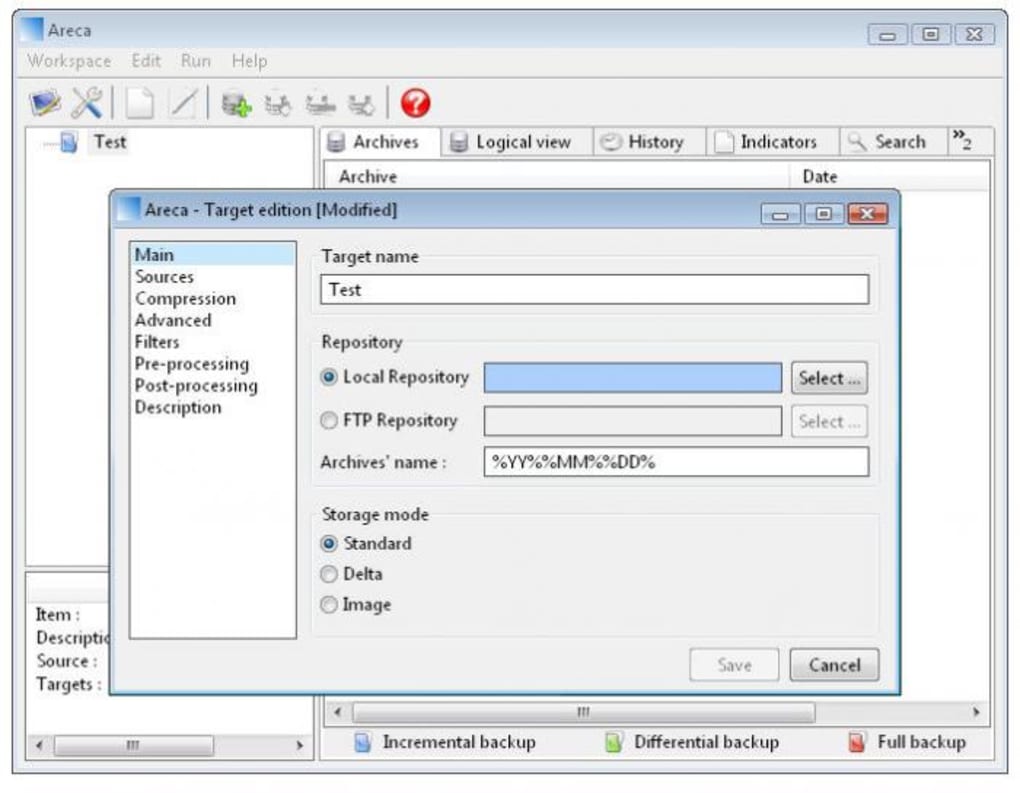
Upon first launch, you’ll be greeted by the “Workspace” screen. A workspace is simply a container for one or more backup “targets.” Think of it as a project folder where you organize related backup sets. To create a new target, click the New Target button, give it a meaningful name (e.g., “Personal Documents”), and point it to the source directory you wish to protect. Next, choose a destination folder—this can be a local drive, a network share, or an FTP location. In the target settings, enable Incremental backup and select compression level if desired. For added security, activate the Encryption checkbox and set a strong password.
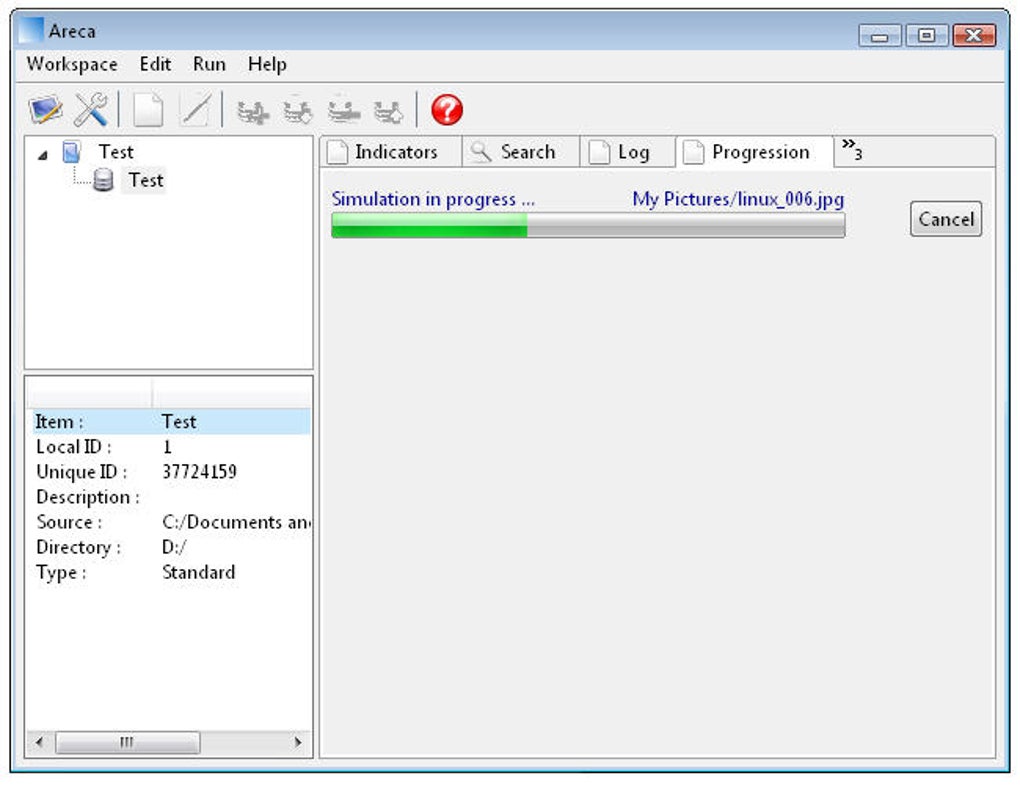
Running a backup is as simple as selecting the target and hitting the Backup button. Areca will scan the source, compare files against the existing backup set, and copy only new or modified items. The progress bar and detailed log keep you informed about transferred files, compression ratios, and any errors encountered. Restoring files follows the same logic: choose the target, click Recover, browse the backup tree, select the desired version, and click Recover again. The restore wizard also allows you to extract entire backup sets or merge them back into the original location.
Because Areca lacks a native scheduler, many users create a small batch or shell script that calls the command‑line interface (CLI) with parameters like -target="MyBackup" -backup. Then, they schedule that script using the OS scheduler of choice. This approach grants you precise control over backup frequency, timing, and retention policies, while keeping the core application lightweight.
Compatibility, Pros & Cons
Areca Backup runs on any operating system that supports Java 8+, including:
- Windows 7, 8, 10, 11 (both 32‑bit and 64‑bit)
- macOS 10.12 Sierra and later
- Linux distributions such as Ubuntu, Fedora, Debian, and Arch
Pros
- Completely free and open‑source, with regular community updates.
- Powerful incremental backup algorithm reduces storage needs.
- Built‑in compression and AES‑256 encryption protect data at rest and in transit.
- FTP/SFTP support enables off‑site storage without third‑party tools.
- Highly configurable via workspaces and multiple targets.
- Cross‑platform Java foundation ensures consistent experience on Windows, macOS, and Linux.
Cons
- No native scheduling; users must rely on external task schedulers.
- Terminology (workspace, target) can be confusing for beginners.
- User interface is functional but dated, lacking modern visual polish.
- Requires Java, which some users consider an extra dependency.
- Limited reporting; detailed backup statistics require manual log inspection.
Frequently Asked Questions (FAQ)
Is Areca Backup truly free or does it have hidden costs?
Areca Backup is released under the GNU GPL license, meaning you can download, use, and even modify the software at no cost. There are no hidden fees, premium features, or mandatory registrations.
Can I back up to cloud services like Google Drive or Dropbox?
Direct integration with Google Drive or Dropbox is not built into Areca. However, you can map these services as network drives or use the FTP/SFTP option if your cloud provider supports it. Alternatively, schedule a sync after the backup completes.
How secure is the encryption offered by Areca?
Areca uses AES‑256 encryption, which is considered military‑grade security. The encryption key is derived from the password you set, so choose a strong, unique password to maximize protection.
Do I need to reinstall Java every time I update Areca?
No. Areca runs on any compatible Java Runtime Environment, so as long as your JRE version meets the minimum requirement (Java 8 or newer), you can simply replace the Areca files with the newer version without touching Java.
What is the best way to automate daily backups with Areca?
Create a small script that calls Areca’s command‑line interface with the appropriate target name and the -backup flag. Then schedule that script using Windows Task Scheduler, cron (Linux), or launchd (macOS) to run at your desired time.
Conclusion & Call to Action
Areca Backup stands out as a robust, free solution for users who value control over their backup strategy. Its incremental engine, compression, and encryption make it a compelling choice for personal and small‑business environments. Although the lack of built‑in scheduling and a slightly antiquated UI may deter absolute beginners, the ability to pair Areca with native OS schedulers restores the missing automation while keeping the core application lightweight.
If you’re looking for a secure, open‑source backup tool that works across Windows, macOS, and Linux without a subscription fee, give Areca Backup a try. Download the latest version, set up your workspace, and protect your data today. Secure your files now—download Areca Backup for free and enjoy peace of mind.
Руководства и уроки
Как установить Areca Backup
- Нажмите кнопку Скачать выше.
- После перенаправления примите условия и нажмите Установить.
- Дождитесь завершения загрузки Areca Backup на ваше устройство.
Как использовать Areca Backup
Это ПО в основном используется для основных функций, описанных выше. Откройте приложение после установки, чтобы изучить его возможности.
Отзывы пользователей
Отзывов пока нет. Поделитесь своим опытом первым.
Вам также может понравиться
еще
Llama 2
Free-to-use large language model As the new addition to Meta’s arsenal of langua...

NotebookLM
Revolutionizing the note-taking and idea-generation process NotebookLM is an exp...

Github co pilot
AI-inspired software development and coding platform GitHub Copilot is a browser...

Google Gemma
Google’s lightweight AI models Introducing Google Gemma , a family of cutting-ed...

AI Image Enlarger
A free app for Windows, by ai-image-larger. AI Image Enlarger is a free software...

DALL E
AI-driven text-to-image transformation engine DALL·E is a free graphic and desig...